Why client approvals go wrongClient approvals kyun bigarte hain
Most agencies approve work in the same three places: a WhatsApp chat, an email thread and a shared Drive folder. It feels fast, until the third round of edits.
- Feedback is scattered, so nobody knows which version is the final one.
- The client says "looks good" in a voice note, and a week later asks for changes.
- Your editor waits because nobody knows whether the video was approved.
A proper approval workflow fixes this with one rule: every item has one review link, and every decision is recorded.
Zyada tar agencies kaam WhatsApp chat, email thread aur Drive folder mein approve karwati hain. Pehle round tak ye tez lagta hai, teesri edit tak mushkil ho jata hai.
- Feedback alag alag jagah bikhra hota hai, kisi ko pata nahi kaunsa version final hai.
- Client voice note mein "theek hai" bolta hai, aur ek hafte baad changes maangta hai.
- Aapka editor intezar karta rehta hai kyunke koi nahi janta video approve hui ya nahi.
Approval workflow ka asool seedha hai: har item ka ek review link, aur har faisla record mein.
1Give every client their own channelHar client ka apna channel banayein
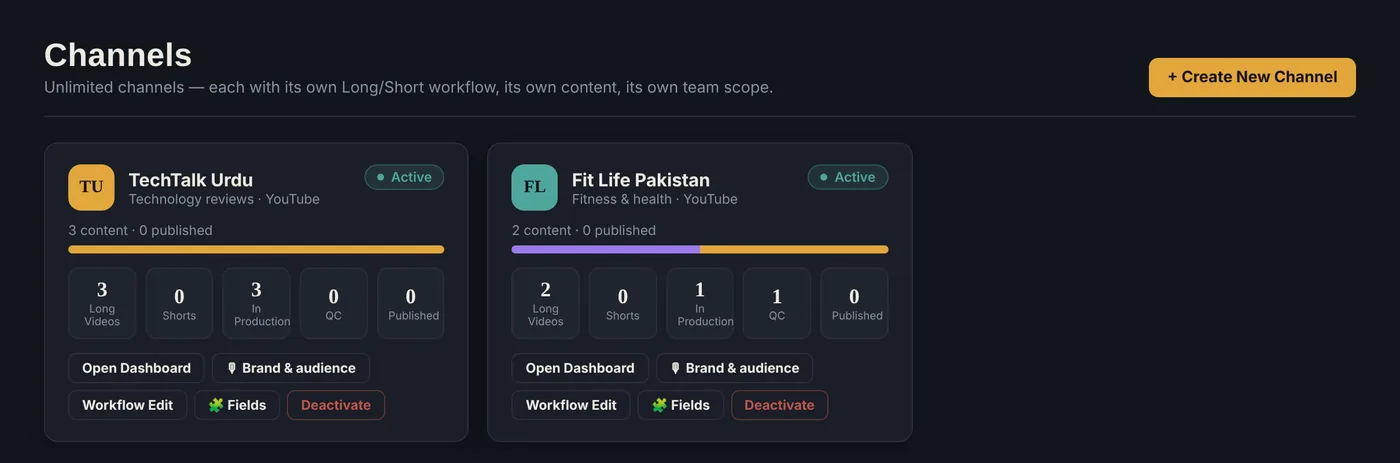
In RailContent, a channel is a brand or account you produce content for. For an agency, that means one channel per client. Each channel has its own content, its own workflow and its own team.
Below, a demo agency runs two clients, TechTalk Urdu and Fit Life Pakistan, from one workspace. You can see at a glance how much is in production and how much is waiting in QC.
RailContent mein channel ka matlab hai wo brand ya account jiske liye aap content banate hain. Agency ke liye iska matlab hai: har client ka ek channel. Har channel ka apna content, apna workflow aur apni team hoti hai.
Neeche ek demo agency ke do clients, TechTalk Urdu aur Fit Life Pakistan, ek hi workspace se chal rahe hain. Ek nazar mein nazar aata hai kitna production mein hai aur kitna QC mein intezar kar raha hai.
2Build stages, with an internal check before the clientStages banayein, client se pehle andar ka check rakhein
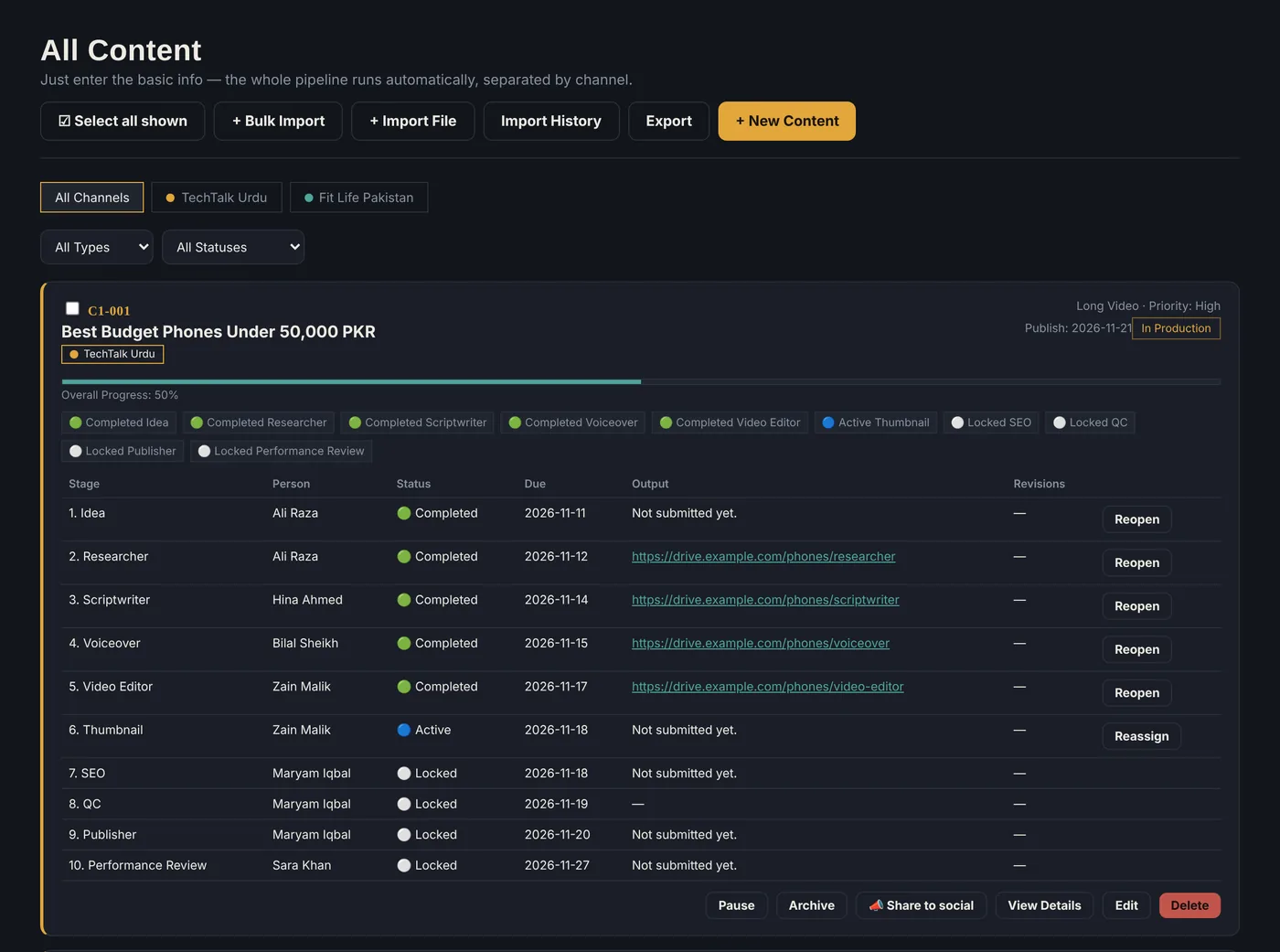
Content moves through stages: Idea, Researcher, Scriptwriter, Voiceover, Video Editor, Thumbnail, SEO, QC, Publisher. Each stage is assigned to a person, and the next one unlocks automatically when the previous one is done.
Tip: keep a QC stage before the client sees anything. Your team catches typos and wrong cuts first, so the client only reviews work that is already clean. A stage can also be set to require approval before the pipeline moves on.
Content stages se guzarta hai: Idea, Researcher, Scriptwriter, Voiceover, Video Editor, Thumbnail, SEO, QC, Publisher. Har stage kisi ek bande ko assign hota hai, aur pichli stage poori hote hi agli khud unlock ho jati hai.
Tip: client ko kuch dikhane se pehle QC stage rakhein. Aapki team typo aur galat cuts pehle pakad leti hai, to client sirf saaf kaam dekhta hai. Kisi stage ko "approval zaroori" bhi set kiya ja sakta hai, taake approval ke baghair pipeline aage na barhe.
3Generate the client review linkClient review link banayein
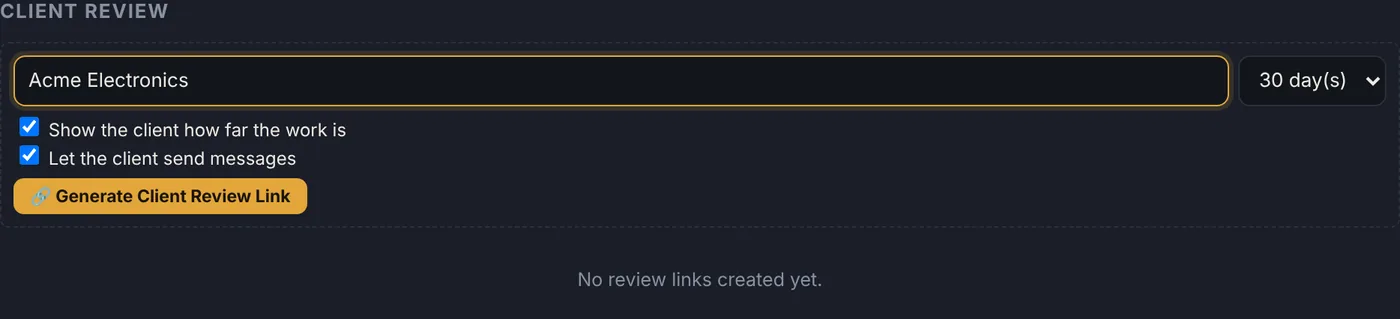
Open any content item and scroll to the Client Review section. This is where you create the link.
- Type the client name (optional).
- Choose how long the link stays valid: 7, 14, 30, 60 or 90 days.
- Decide whether the client can see progress and whether they can send messages.
- Click Generate Client Review Link.
Koi bhi content item kholein aur neeche Client Review section tak scroll karein. Link yahin se banta hai.
- Client ka naam likhein (zaroori nahi).
- Link kitne din chale: 7, 14, 30, 60 ya 90 din.
- Tay karein ke client progress dekh sake aur message bhej sake ya nahi.
- Generate Client Review Link par click karein.
The link appears right below, marked Awaiting response. Copy it and send it to the client on WhatsApp or email. You can revoke it at any time, and it stops working on its expiry date anyway.
Link foran neeche aa jata hai aur uspar Awaiting response likha hota hai. Use copy karke client ko WhatsApp ya email par bhej dein. Aap kabhi bhi Revoke kar sakte hain, aur expiry date par ye khud band ho jata hai.

4What the client sees: no login, no accountClient kya dekhta hai: na login, na account
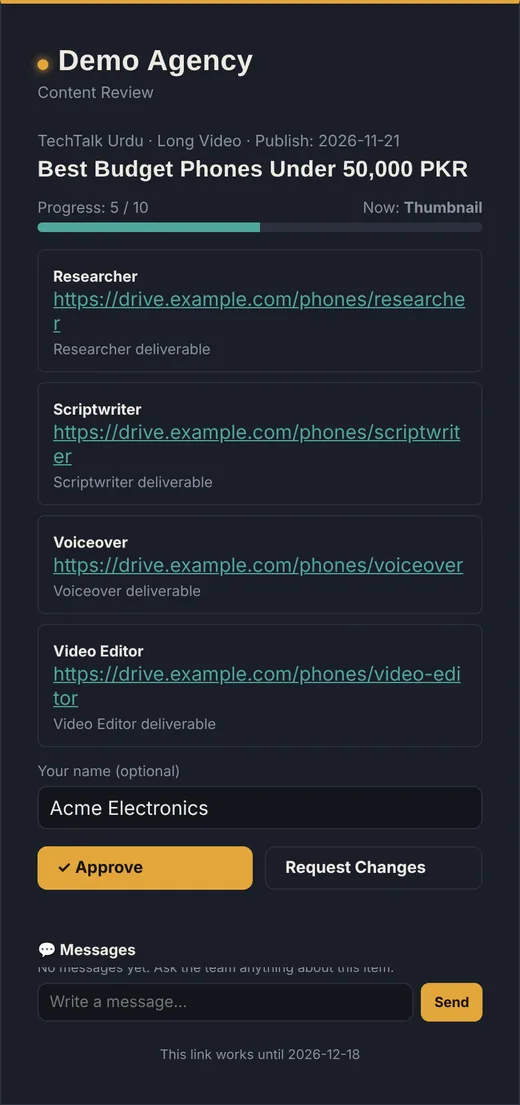
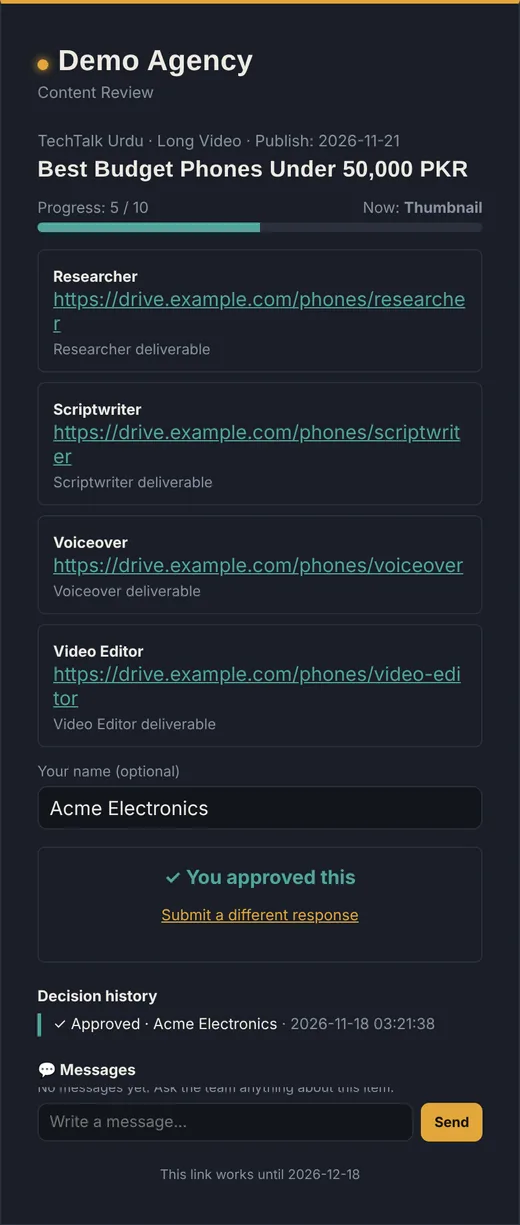
The client opens the link on their phone or laptop. There is nothing to install and no password to create. They see the title, the progress bar, every deliverable so far, and two big buttons: Approve and Request Changes.
If you allowed messages, they can also ask a question right on the same page instead of sending a separate WhatsApp.
Client link apne phone ya laptop par kholta hai. Kuch install nahi karna, koi password nahi banana. Usay title, progress bar, ab tak ke saare deliverables, aur do bade buttons nazar aate hain: Approve aur Request Changes.
Agar aapne messages allow kiye hain, to wo alag WhatsApp bhejne ke bajaye usi page par sawal bhi pooch sakta hai.
5Approve or request changes, and see it instantlyApprove ya changes ka request, aur aapko foran nazar aata hai
When the client clicks Approve, they see a confirmation and a Decision history with the name and time. If they choose Request Changes, they write what should change, and the item goes back to your team with that reason attached.
On your side, the link status flips from Awaiting response to Approved, with the time it was viewed. No chasing, no "did he reply?".
Client Approve dabata hai to usay confirmation aur naam/waqt ke saath Decision history nazar aati hai. Agar wo Request Changes chune, to likhta hai kya badalna hai, aur item wajah ke saath wapas aapki team ke paas aa jata hai.
Aapki taraf link ka status Awaiting response se badal kar Approved ho jata hai, aur dekhne ka waqt bhi likha hota hai. Peechay bhaagne ki zaroorat nahi, "usne jawab diya ya nahi?" ka sawal khatam.

6 habits that make approvals painlessApprovals asaan banane ki 6 aadatein
- One link per item. Never approve three videos in one chat.
- QC first. Review internally before the client sees it.
- Set a short expiry (7 to 14 days) so approvals do not drag on.
- Ask specific questions in your message: "Is the intro length OK?" beats "thoughts?".
- Revoke old links once a decision is made.
- Keep the history. If a client changes their mind later, you can show the decision and the date.
- Ek item, ek link. Teen videos ek chat mein approve na karwayein.
- Pehle QC. Client ko dikhane se pehle andar review karein.
- Expiry chhoti rakhein (7 se 14 din), taake approval latki na rahe.
- Seedha sawal poochein: "Intro ki length theek hai?" behtar hai "kya khayal hai?" se.
- Purane links revoke karein jab faisla ho jaye.
- History mehfooz rakhein. Client baad mein rai badle to aap faisla aur tareekh dikha sakte hain.
Frequently asked questionsAksar pooche jane wale sawal
Does my client need an account? / Kya client ko account banana parta hai?
No. The client opens the link and approves. No login and nothing to install.
Nahi. Client link kholta hai aur approve kar deta hai. Na login, na install.
Can I stop a link from working? / Kya main link band kar sakta hun?
Yes. Click Revoke next to the link. Links also expire automatically after the number of days you choose.
Ji haan. Link ke saath Revoke par click karein. Aapke chune hue dinon ke baad link khud bhi expire ho jata hai.
Can I use this for videos, scripts and thumbnails? / Kya ye videos, scripts aur thumbnails ke liye chalta hai?
Yes. The client sees the deliverables attached to each stage of that item, such as the script link, voiceover and edited video.
Ji haan. Client ko us item ke har stage ke deliverables nazar aate hain, jaise script ka link, voiceover aur edit ki hui video.
Run client approvals from one place Client approvals ek hi jagah se chalayein
14-day free trial, no card needed. 14 din ka free trial, card ki zaroorat nahi.
Screenshots use demo data. See also: RailContent for agencies and Urdu AI and PKR pricing. Screenshots mein demo data hai. Ye bhi dekhein: agencies ke liye RailContent aur Urdu AI aur PKR pricing.