Why a spreadsheet calendar stops workingSpreadsheet calendar kyun fail ho jata hai
Almost every YouTube team starts with a Google Sheet or a Notion table. It works for one creator. Once you have a scriptwriter, a voiceover artist, an editor and a thumbnail designer, three things break:
- The sheet shows what is planned, but not who is holding it right now.
- Nobody is told when the previous stage finishes, so the next person starts late.
- You find out a video will miss its date only on the day it should go live.
A content calendar for a team needs to be connected to the work itself: every date linked to a pipeline, every stage linked to a person.
Lagbhag har YouTube team Google Sheet ya Notion table se shuru karti hai. Ek creator ke liye ye theek hai. Jab scriptwriter, voiceover artist, editor aur thumbnail designer aa jayein, to teen cheezein bigarti hain:
- Sheet batati hai ke kya plan hai, ye nahi ke abhi kis ke paas hai.
- Pichli stage khatam hone par kisi ko khabar nahi hoti, to agla banda der se shuru karta hai.
- Video apni date miss karegi, ye aapko tab pata chalta hai jab wo live honi chahiye thi.
Team ke content calendar ko kaam se jura hona chahiye: har date ek pipeline se, aur har stage ek insaan se.
1Plan topics with a publish dateTopics ko publish date ke saath plan karein
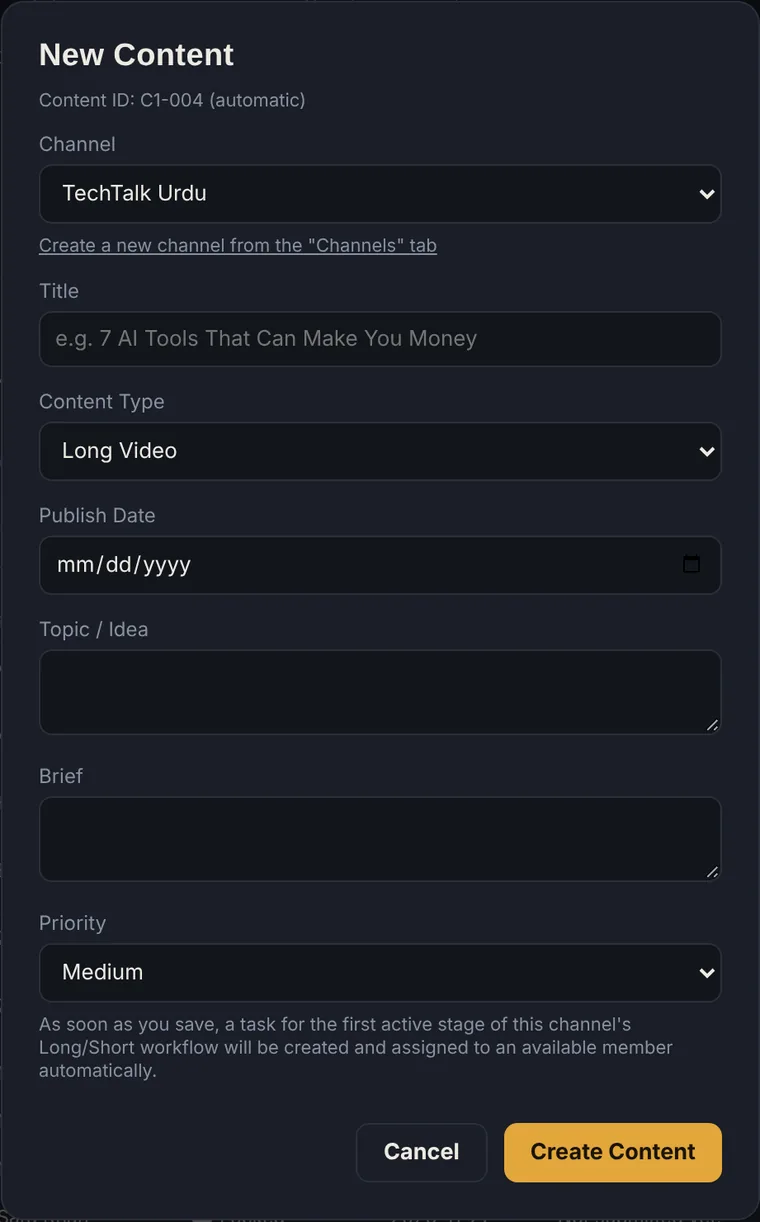
Click New Content and fill in the basics. This takes about a minute per video.
- Choose the channel.
- Write the title (a working title is fine).
- Pick the content type, such as Long Video or Short, and the publish date.
- Add the topic or idea, a short brief for the team, and a priority.
The publish date is the anchor. Everything else on the calendar is counted back from it.
New Content par click karein aur bunyadi cheezein bharein. Ek video par takreeban ek minute lagta hai.
- Channel chunein.
- Title likhein (abhi working title bhi chalega).
- Content type chunein, jaise Long Video ya Short, aur publish date.
- Topic ya idea, team ke liye chhota sa brief, aur priority likhein.
Publish date asal anchor hai. Calendar ki baaki sab cheezein isi se peechay ginti hain.
2See the whole month in one calendarPoora mahina ek calendar mein dekhein
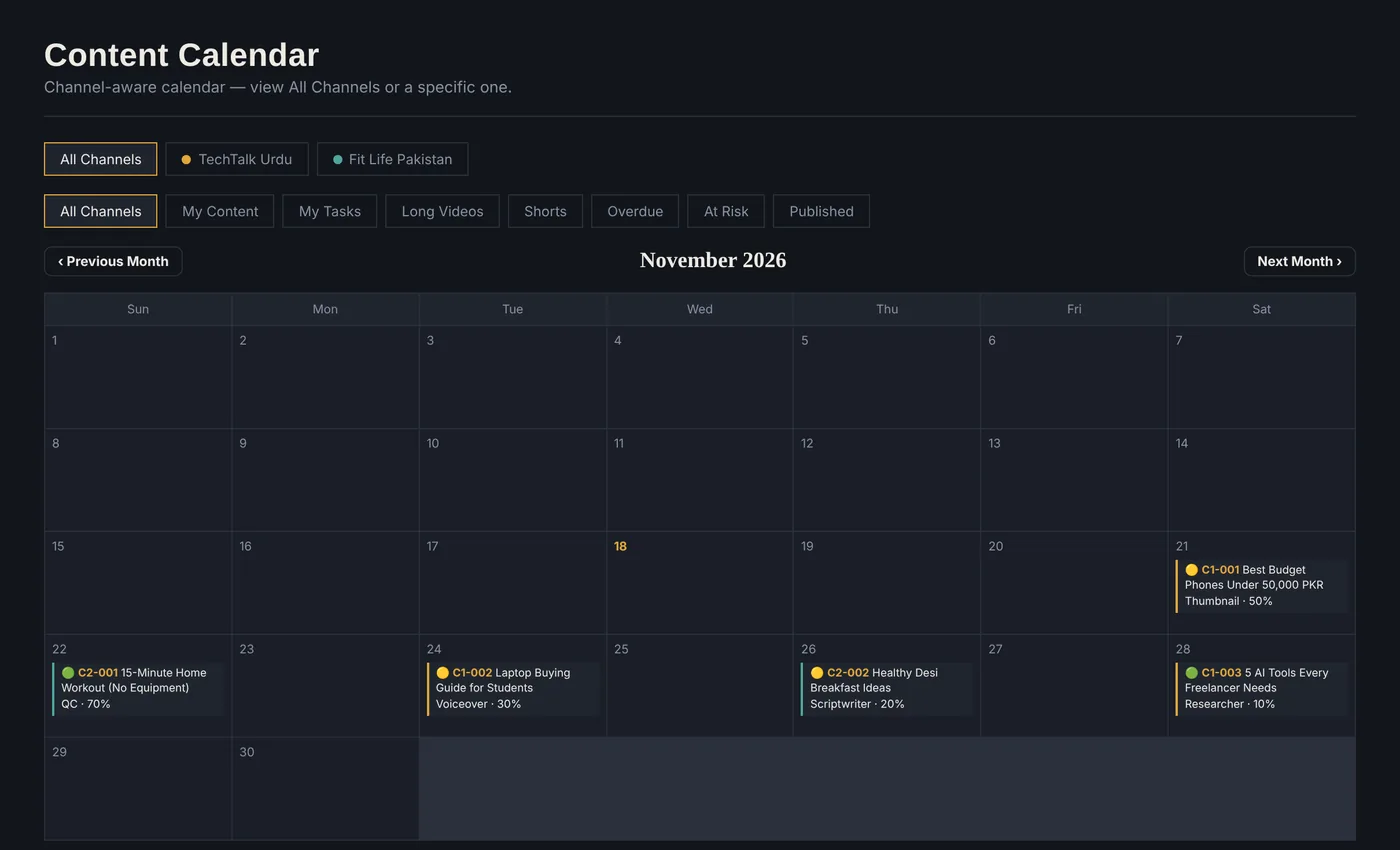
Every video you create lands on the calendar on its publish date. Each entry shows the content ID, the title, the stage it is in right now and the overall progress, for example Thumbnail · 50%.
Use the channel buttons to look at one channel, or keep All Channels to see how a busy week looks across clients. The filters (My Content, My Tasks, Long Videos, Shorts, Overdue, At Risk, Published) cut the view down in one click.
Aap jo bhi video banate hain wo apni publish date par calendar mein aa jati hai. Har entry mein content ID, title, abhi wo kis stage mein hai aur overall progress nazar aata hai, jaise Thumbnail · 50%.
Channel buttons se ek channel dekhein, ya All Channels rakhein taake pata chale clients ke beech busy hafta kaisa lagta hai. Filters (My Content, My Tasks, Long Videos, Shorts, Overdue, At Risk, Published) ek click mein view chhota kar dete hain.
3Let every stage assign itselfHar stage khud assign hone dein
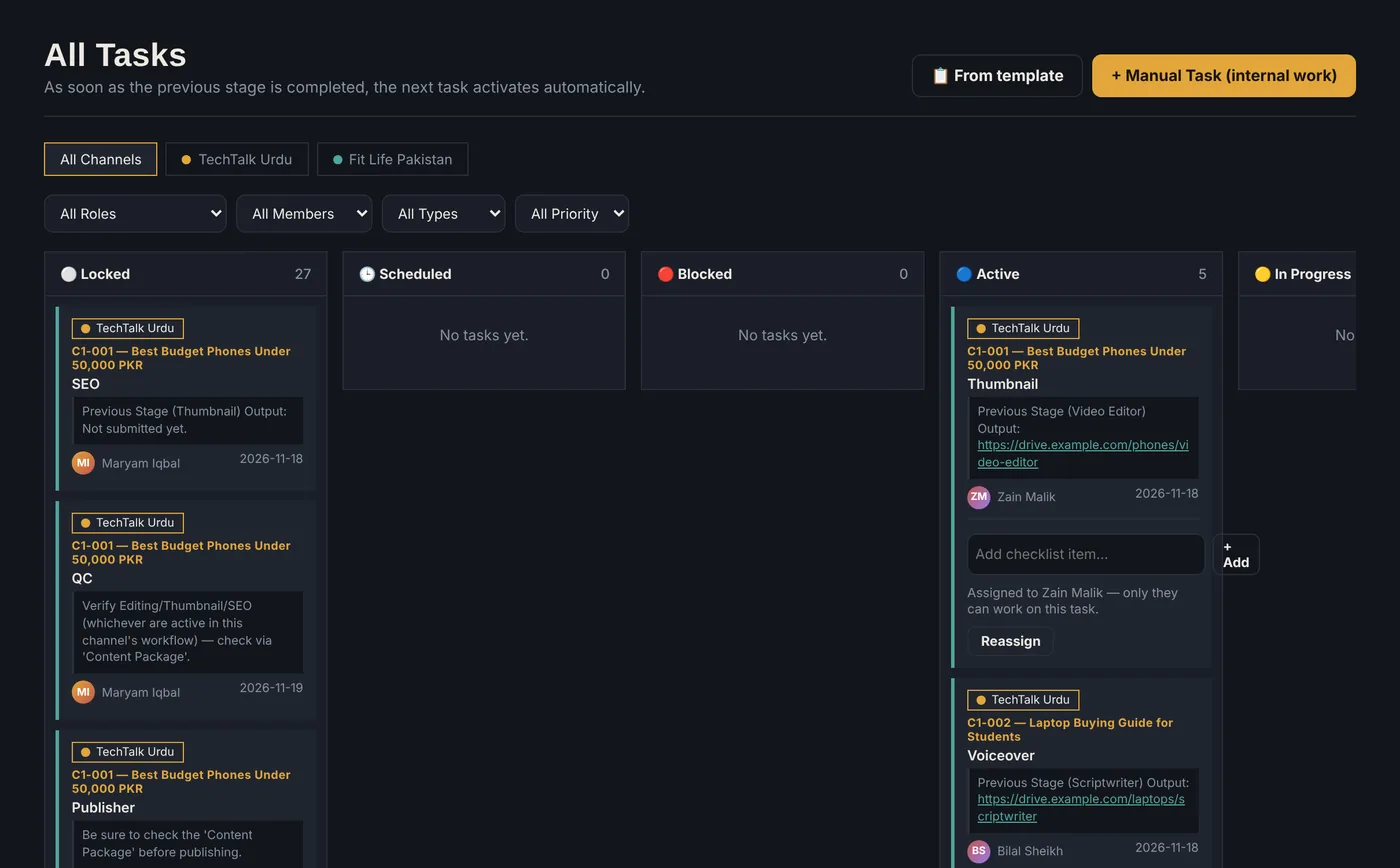
When you create the item, RailContent builds the pipeline for that channel and gives each stage to the right person with its own due date. The tasks board shows the result in columns: Locked (waiting), Active (someone can start now), In Progress and finished.
The key rule is in the subtitle of the page: as soon as the previous stage is completed, the next task activates automatically. The editor does not need a message saying "the voiceover is ready". The card simply moves to Active, with the previous stage's output link attached.
Item banate hi RailContent us channel ki pipeline bana deta hai aur har stage sahi bande ko uski apni due date ke saath de deta hai. Tasks board natija columns mein dikhata hai: Locked (intezar), Active (ab koi shuru kar sakta hai), In Progress aur mukammal.
Asal asool page ke subtitle mein hai: pichli stage poori hote hi agla task khud active ho jata hai. Editor ko "voiceover ready hai" ka message nahi chahiye. Card khud Active mein aa jata hai, aur pichli stage ka output link saath laga hota hai.
4Watch workload and overdue workWorkload aur overdue kaam par nazar rakhein
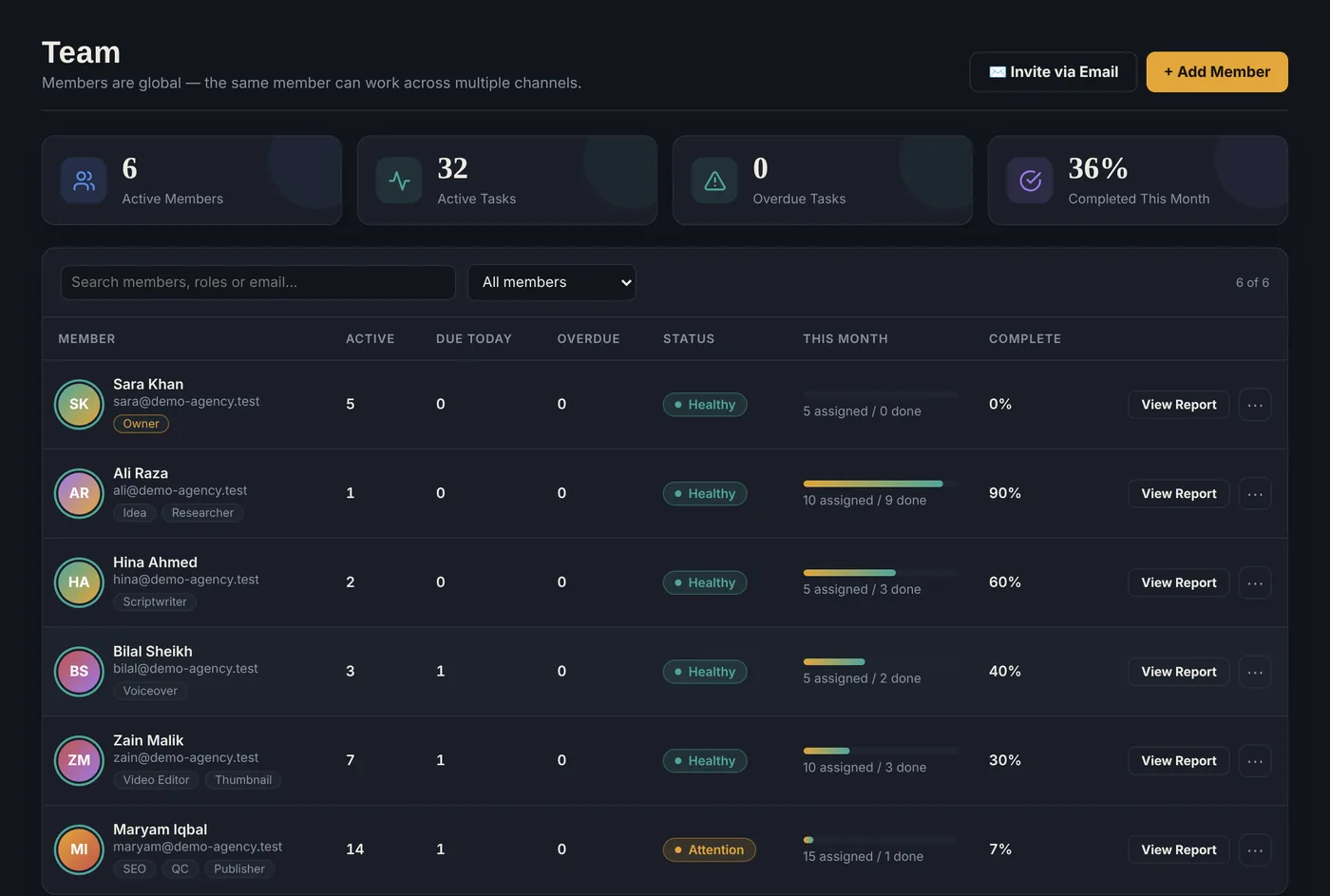
The Team page turns the calendar into a health check. For each member you see active tasks, tasks due today, overdue tasks and how much of this month's work is done. A member with too much on their plate gets an Attention badge before anything slips.
Check this page once at the start of every week. If one person holds 14 active tasks while another holds 1, move work before the deadline, not after.
Team page calendar ko health check bana deta hai. Har member ke liye active tasks, aaj due tasks, overdue tasks aur is mahine ka kitna kaam hua, sab nazar aata hai. Jis ke paas bohat zyada kaam ho usay kuch bigarne se pehle Attention ka badge mil jata hai.
Har hafte ke aaghaz mein ye page ek baar dekhein. Agar ek bande ke paas 14 active tasks hain aur doosre ke paas 1, to kaam deadline se pehle tabdeel karein, baad mein nahi.
6 habits for a calendar that actually worksAise calendar ki 6 aadatein jo waqai chalta hai
- Plan 3 to 4 weeks ahead. A full month on the calendar tells you where the gaps are.
- Set the publish date first, then let the stages count back from it.
- One owner per stage. Shared ownership means nobody owns it.
- Leave a buffer day between QC and publishing.
- Use the At Risk and Overdue filters daily. They take ten seconds.
- Mix long videos and Shorts on purpose. Shorts fill the quiet days.
- 3 se 4 hafte aage plan karein. Poora mahina calendar mein ho to khali jagahein nazar aati hain.
- Pehle publish date tay karein, phir stages usse peechay ginein.
- Har stage ka ek owner. Mil kar zimmedari ka matlab hai kisi ki nahi.
- QC aur publishing ke beech ek din ka buffer rakhein.
- At Risk aur Overdue filters roz dekhein. Das second lagte hain.
- Long videos aur Shorts jaan boojh kar mix karein. Shorts khali dinon ko bharte hain.
Frequently asked questionsAksar pooche jane wale sawal
Can I plan more than one YouTube channel in one calendar? / Kya main ek calendar mein ek se zyada YouTube channel plan kar sakta hun?
Yes. Each channel has its own colour and workflow, and the calendar can show all channels together or one at a time.
Ji haan. Har channel ka apna rang aur workflow hota hai, aur calendar sab channels ek saath ya ek ek karke dikha sakta hai.
Do team members get tasks automatically? / Kya team members ko tasks khud mil jate hain?
Yes. When an item is created, each stage is assigned to the right person, and the next stage unlocks when the previous one is completed.
Ji haan. Item banate hi har stage sahi bande ko assign ho jati hai, aur pichli stage mukammal hote hi agli unlock ho jati hai.
How do I know a video is going to be late? / Mujhe kaise pata chale ke video late hone wali hai?
Use the Overdue and At Risk filters on the calendar, and check the Team page for overdue tasks and members flagged Attention.
Calendar par Overdue aur At Risk filters istemal karein, aur Team page par overdue tasks aur Attention wale members dekhein.
Does it work for Shorts as well as long videos? / Kya ye Shorts aur long videos dono ke liye chalta hai?
Yes. Choose Long Video or Short when you create the item, and filter the calendar by either type.
Ji haan. Item banate waqt Long Video ya Short chunein, aur calendar ko kisi bhi type se filter karein.
Plan your YouTube calendar with your team Apni team ke saath YouTube calendar plan karein
14-day free trial, no card needed. 14 din ka free trial, card ki zaroorat nahi.
Screenshots use demo data. See also: RailContent for YouTube teams and the client approval workflow guide. Screenshots mein demo data hai. Ye bhi dekhein: YouTube teams ke liye RailContent aur client approval workflow guide.